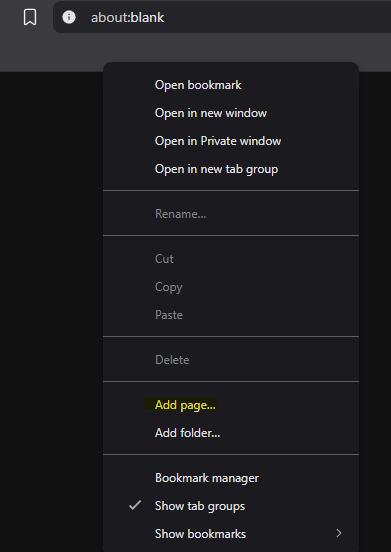
1. Create a bookmark by right-clicking the bookmarks bar and selecting "Add page..." (or similar, depending on your browser).
This guide applies to both the International server (chunithm-net-eng.com) and the Japan server (new.chunithm-net.com).
If you play on the Japan server, you need an active "GekiChuMai-NET Usage Right" (ゲキチュウマイ-NET 利用権) subscription to access your score data on CHUNITHM-NET. Without this, the score record pages will be restricted and ChuniMaru will not be able to import your data. This subscription can be purchased from the official SEGA site. International server players do not need this.
Screenshots in this guide may look slightly different from what you see, because they were captured on an older version of the site.
1. Create a bookmark by right-clicking the bookmarks bar and selecting "Add page..." (or similar, depending on your browser).
2. Set the URL to the following code snippet and name it whatever you like.
javascript:(async()=>{try{const url="https://chunimaru.fuwamofu.net/score-sync.js?t="+Date.now();const res=await fetch(url,{cache:"no-store"});if(!res.ok)throw new Error(res.status+" "+res.statusText);const code=await res.text();(0,eval)(code);}catch(e){console.error("[ChuniMaru Sync]",e);alert("ChuniMaru sync loader failed. Check console.");}})();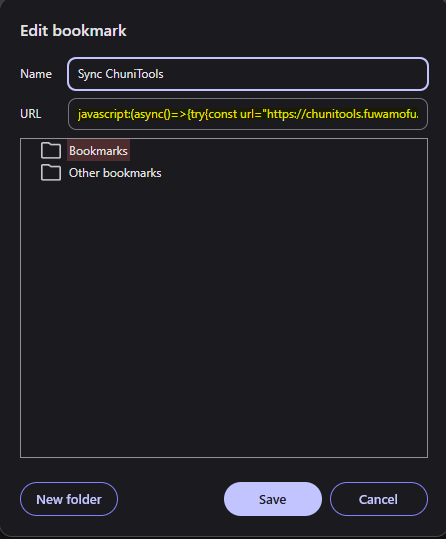
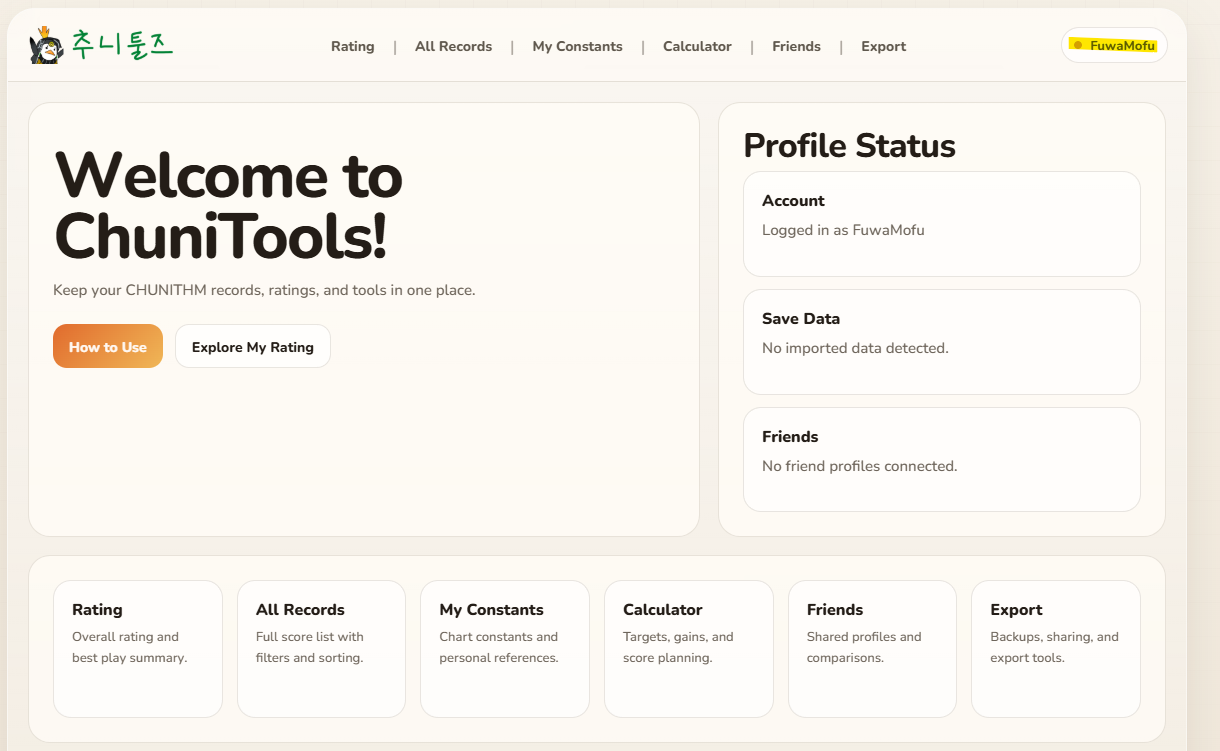
3. Make sure you are logged into ChuniMaru. You can verify this by checking if your username is displayed in the top right corner.
4. Log into CHUNITHM-NET international, and run the saved bookmark while you are on the CHUNITHM-NET page.
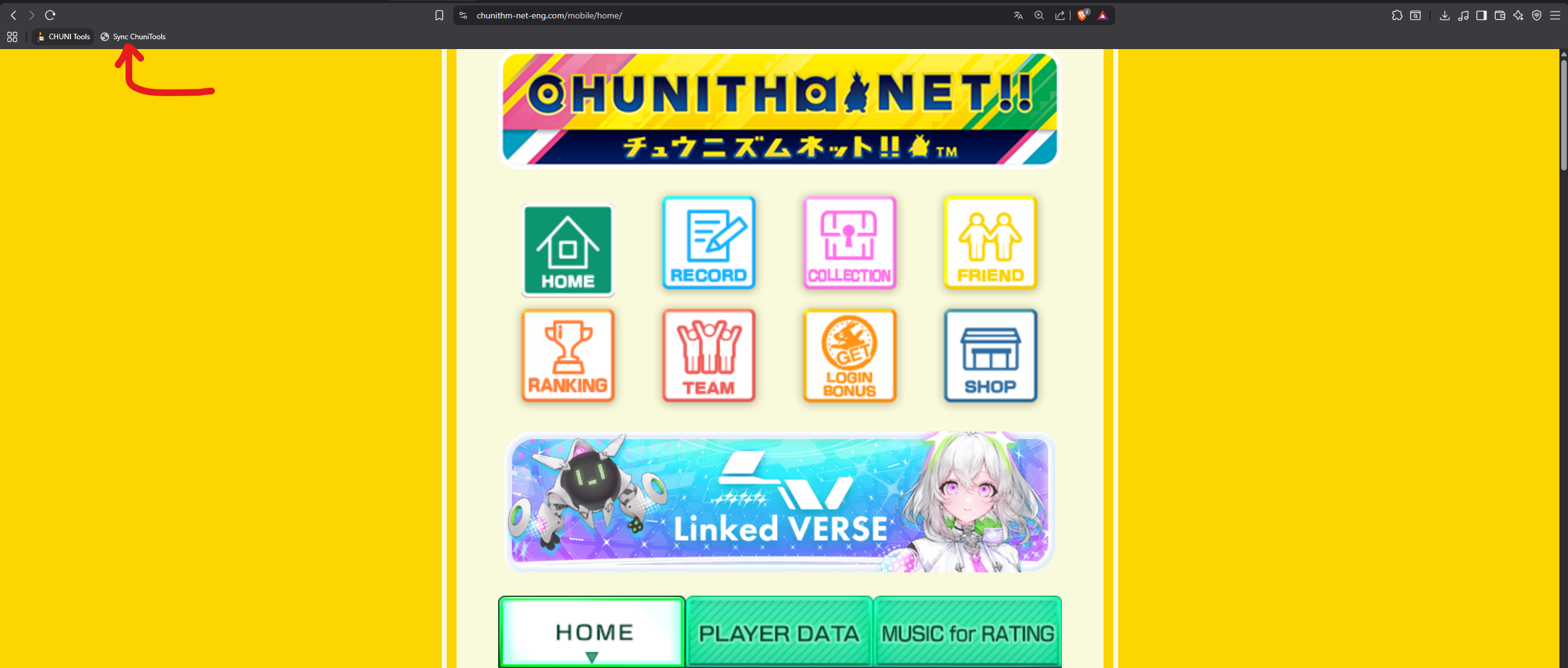
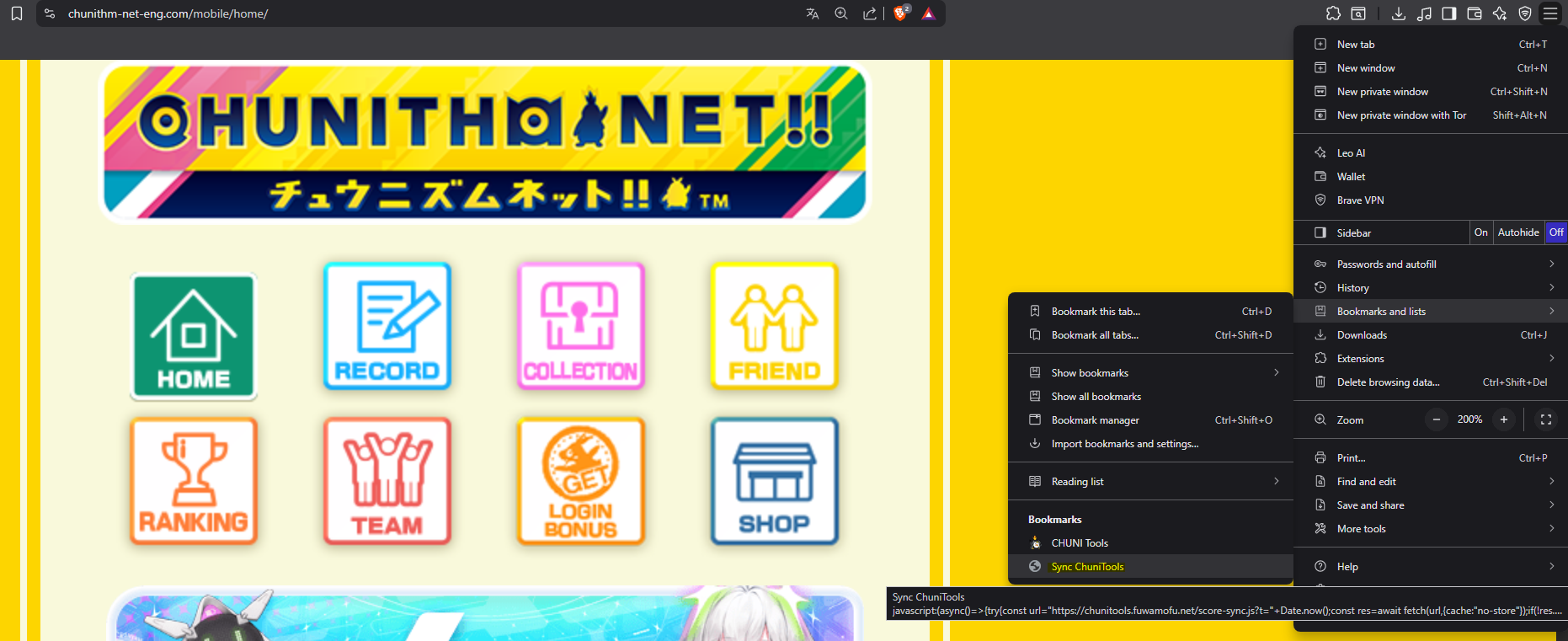
5. A pop-up as well as an overlay will appear. Wait for the sync process to complete. Once it is done, you can close the pop-up and CHUNITHM-NET page.
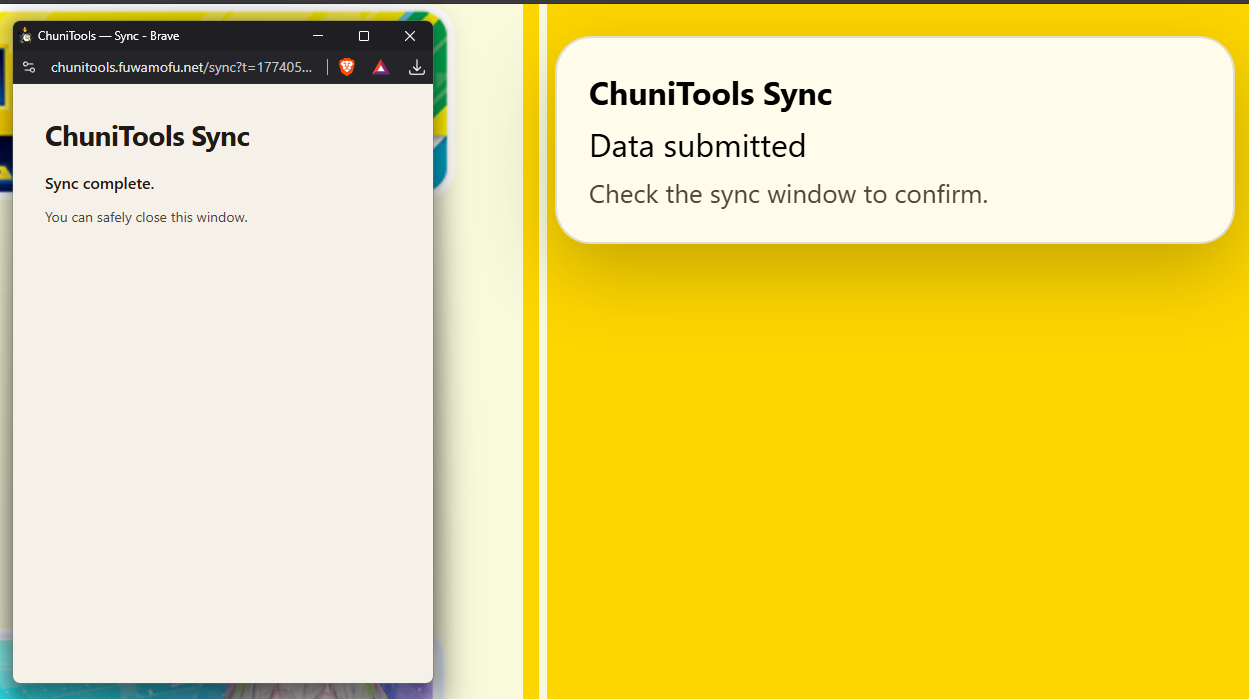
6. Refresh ChuniMaru, and you should see your records in the "Records" page.
Automatic Sync is not available for Japan server players. Please use the Manual method instead.
1. Open the Account page, enable Automatic Sync, save your preferences, then click Connect.
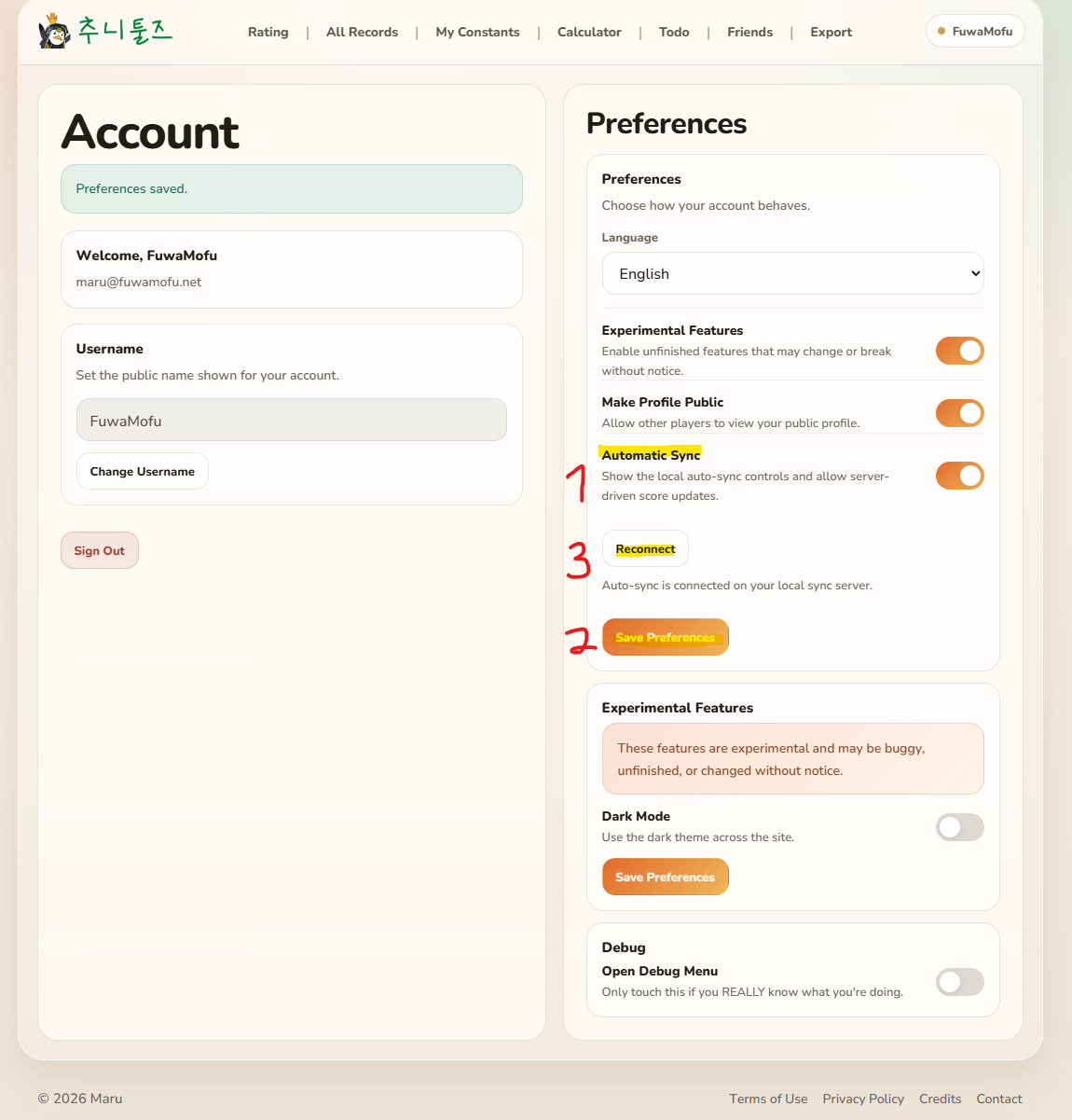
2. Finish the local sync popup setup so ChuniMaru can store your encrypted sync connection for future updates.
ChuniMaru does not store your SEGA ID username or password. It stores only an encrypted clal cookie. If you do not trust this flow and you know what you are doing, you can manually add your clal cookie from Account -> Debug Menu instead.
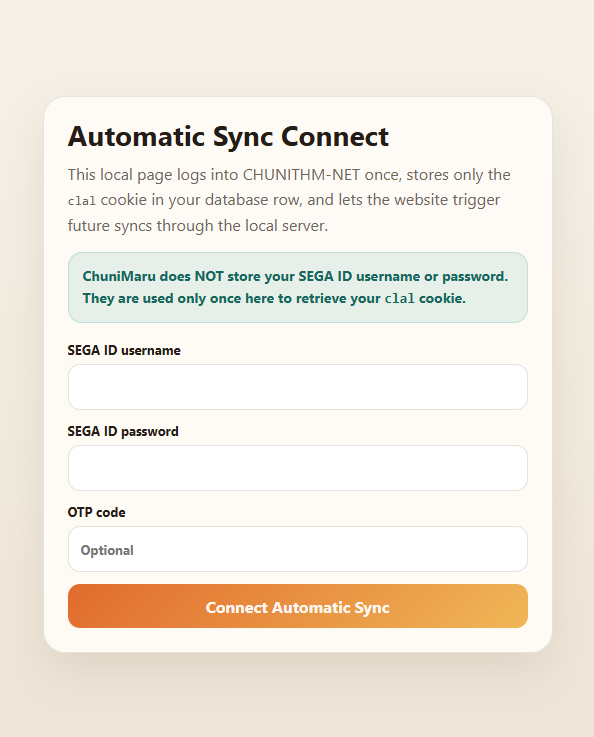
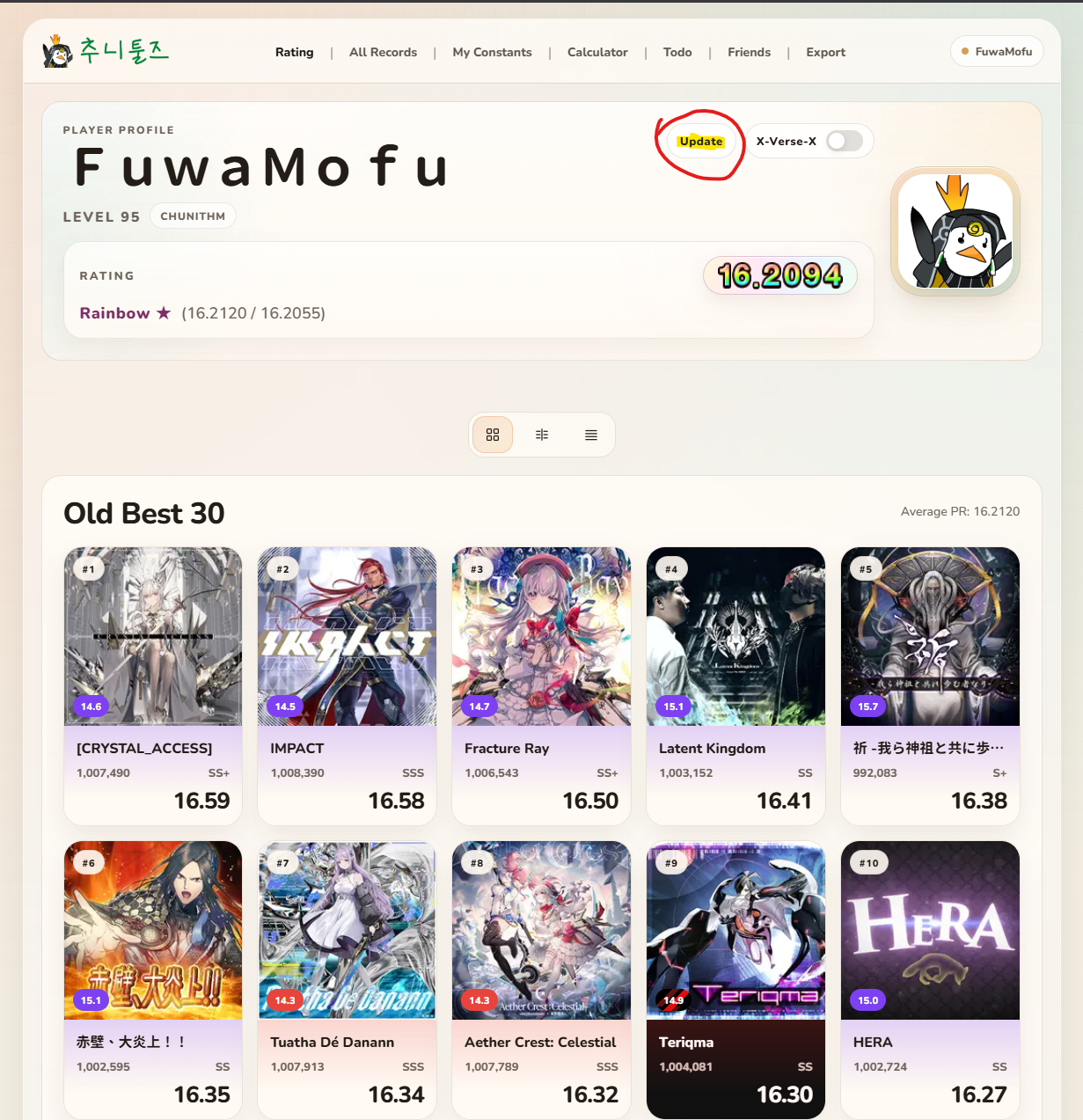
3. After Automatic Sync is connected, open the Rating page and use the Update button whenever you want to pull in your newest scores.